 WipeTok
How to Remove Reposted Videos on TikTok (Step by Step)
Jul 13, 2026 · WipeTok
Sources & testing approach · WipeTok product details

TikTok reposts are easy to make, and just as easy to forget. If your profile has old reposts you no longer want associated with your account, you can remove them directly inside TikTok. The key thing to know up front: TikTok's official process is manual. Its help guidance describes removal on a per-video basis and does not document a native remove-all button.
That means if you're searching for a TikTok all reposted videos remover, slow down for a second. Tools that automate the cleanup exist (WipeTok is one of them), but the baseline everyone should understand first is the manual process, because every legitimate tool is automating exactly these steps.
Before you start: what removing a repost does
- Removes your repost action from that video.
- Stops the video from appearing in your Reposts tab.
- Does not delete the original creator's video.
- Does not remove likes, comments, saves, or shares you made separately.
- Does not delete videos you personally uploaded.
If your goal is a cleaner profile, removing reposts is the right start. If you want to remove videos you posted yourself, that's a separate job with separate steps.
Step 1: Open TikTok and go to your profile
Open the TikTok app and tap Profile in the bottom-right corner. Repost management is easiest in the mobile app. Look for the Reposts section on your profile; depending on your app version it appears under a repost icon or a dedicated tab.
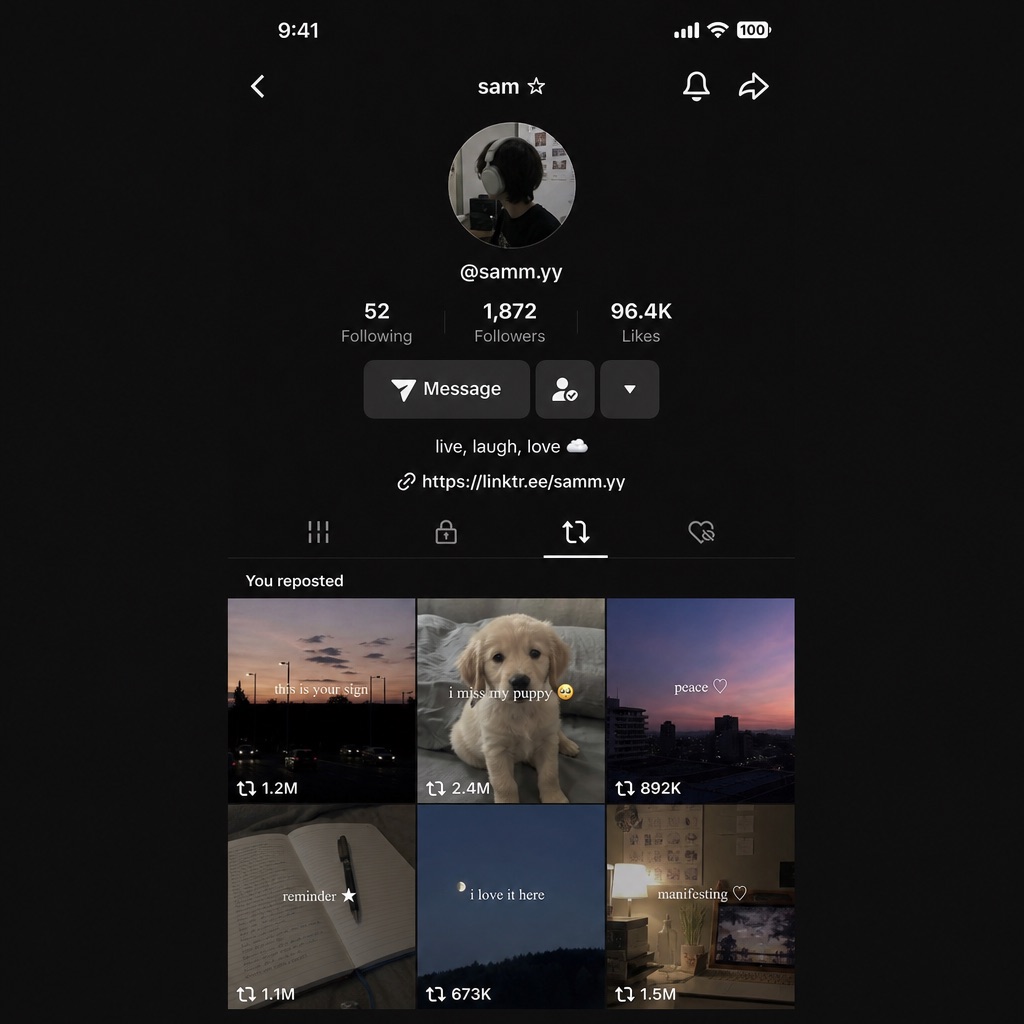
If you don't see a repost section: update the app, close and reopen it, log out and back in, and double-check you're on the right account. Layouts vary by account, region, and app version, so your screen may not match someone else's exactly.
Step 2: Find the reposted video you want to remove
Scroll your reposts and pick a starting point. If the list is long, most recent first is easiest. Worth prioritizing:
- Outdated or no longer relevant reposts.
- Anything off-brand for your current profile.
- Accidental reposts.
- Content that's too personal, controversial, or distracting.
- Reposts that no longer match your audience or goals.
Step 3: Open the video
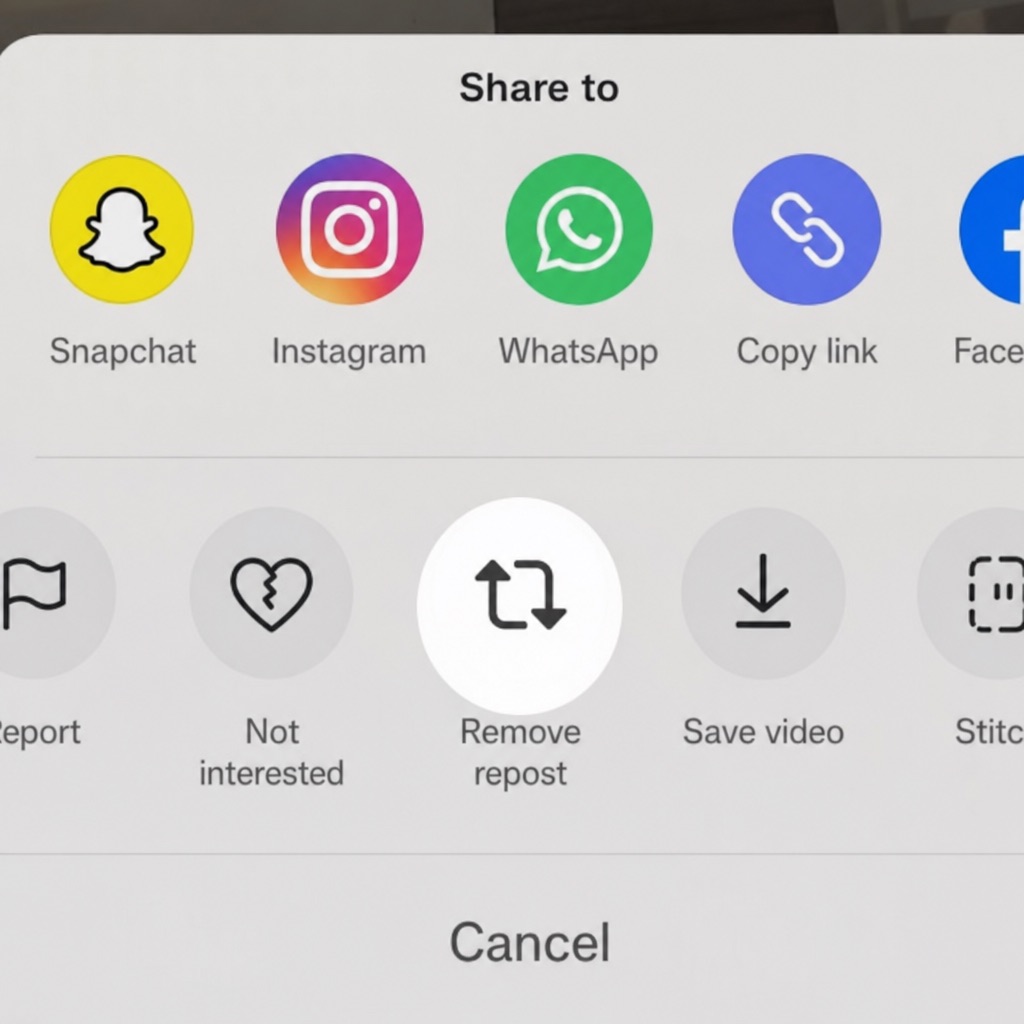
Tap the reposted video to open it; you need to be on the video itself. TikTok's official instructions say to tap your own profile photo on the video, tap Reposted, then tap Remove repost. In some app versions the option lives behind the Share arrow instead, worded as Remove repost or Undo repost.
Step 4: Tap Remove repost
Tap Remove repost and TikTok undoes the repost immediately. Don't expect a dramatic confirmation screen: often the button just changes state, or the video quietly drops out of your Reposts tab after a refresh. To confirm, return to your profile, open the Reposts section, and check the video is gone; restart the app if it seems stuck.
Step 5: Repeat for each reposted video
This is the part people find frustrating: the documented method is one video at a time, so a long repost history means a lot of repetition. For a handful of reposts it's quick. For hundreds, work in short sessions instead of grinding through everything at once:
- Remove the most urgent or embarrassing reposts first.
- Then clear by category: old trends, jokes, political content, outdated brand posts.
- Take breaks if the backlog is long.
- Refresh your profile occasionally to confirm changes are saving.
Can you remove all TikTok reposts at once?
Not natively. TikTok does not provide a documented built-in feature that removes every repost in one action, which is exactly why people search for a TikTok all reposted videos remover. Third-party tools fill that gap by automating the same per-video removal, and they are not all built alike. Before granting any tool access, check whether it could:
- Ask for your TikTok password on its own site or form (never enter it).
- Request broad permissions beyond tiktok.com.
- Run invisibly on a server instead of in front of you.
- Remove reposts you wanted to keep, with no preview or stop control.
- Break silently when TikTok updates its interface.
This checklist is the honest way to judge the category, including our own tool. WipeTok is built to pass it: it's a free Chrome extension (plus an iPhone app) that scans your Reposts tab first, then removes reposts in visible, paced batches with pause and stop controls. There's no password form and no backend server; you sign in to TikTok yourself in your own session, and the extension's permissions are limited to tiktok.com. It automates the same one-at-a-time Remove repost action described above, because that's the only action TikTok offers anyone. WipeTok is independent and not affiliated with TikTok.
What to do if Remove repost is missing
Update the TikTok app
Check your device's app store for updates. Repost features can look different or be missing on older versions.
Restart the app
Close TikTok completely and reopen it. This refreshes buttons, menus, and profile sections that failed to load.
Open the video from your profile again
If you opened the video from search, comments, messages, or the For You feed, go back to your Reposts section and open it from there instead. The repost context is easier for TikTok to recognize.
Try the Share menu
If tapping the repost label does nothing, tap the Share arrow and look for Remove repost there.
Clear the cache
TikTok's cache can leave old interface elements stuck. Clear it from Settings, then Free up space, and check your profile again.
Wait and check later
If TikTok is lagging, a removal may not show immediately. Give it a few minutes, reopen the app, and confirm.
How to avoid accidental reposts in the future
- Pause before tapping buttons in the Share menu; Repost sits right next to the others.
- Review your Reposts tab once a month.
- Be careful when browsing quickly or one-handed.
- Remove accidental reposts as soon as you notice them.
- Keep your public profile aligned with your personal or brand goals.
For creators and businesses, reposts can be part of a real content strategy: they signal taste, community involvement, and values. Unmanaged reposts do the opposite, especially when they clash with your current niche.
Quick troubleshooting checklist
- Are you logged into the right TikTok account?
- Did you open the exact video you reposted?
- Have you checked both the repost label and the Share menu?
- Is your TikTok app updated?
- Did you refresh your profile after removing the repost?
- Are you trying to remove someone else's video instead of your repost of it?
Remember: removing a repost only removes your repost action. If someone else uploaded or reposted the same video, you can't remove it from their account; that's a job for TikTok's reporting flow, not repost cleanup.
Final takeaway
To remove reposted videos on TikTok: open the reposted video, find the repost option, and tap Remove repost, then repeat per video. That per-video action is the entire official surface TikTok offers. A bulk remover can save you the repetition, but only trust one that works in front of you, never touches your password, and lets you stop at any time. Clean it up gradually until your profile reflects what you actually want people to see.
Frequently asked questions
Can you delete all TikTok reposts at once?
Not with a built-in TikTok feature; the documented process is one video at a time. Tools like WipeTok automate that same per-video removal in visible, paced batches. Judge any tool by how it signs you in (never via a password form of its own) and how much you can see and stop during the cleanup.
Why can't I find the Remove repost button?
Usually an app-version or context issue. Update TikTok, restart the app, and open the video from your profile's Reposts section rather than from search or messages. If the repost label doesn't respond, check the Share arrow menu; clearing the cache via Settings, then Free up space, also helps.
Does removing a reposted video delete the original?
No. Removing a repost only removes your repost action, so the video stops appearing on your profile. The creator's original video, and any likes or comments you left separately, stay exactly as they were.
Related reading


Clean up your TikTok reposts
WipeTok scans your repost trail and cleans it in visible, controlled batches — no password collection.
See how the Chrome extension works →