 WipeTok
TikTok Video Cleanup: A Step-by-Step Guide
Jul 15, 2026 · WipeTok · Updated Sep 7, 2026
Sources & testing approach · WipeTok product details

Source: WipeTok product access and allowance facts — reviewed September 7, 2026 ↗
Source: Controlled extension checks — scope and limitations ↗
A cluttered TikTok account is harder to manage, especially after years of reposts, old uploads, drafts, and saved videos pile up together. This guide walks through a practical cleanup: audit what's visible, remove reposts, delete or hide outdated posts, tighten privacy, and set a simple routine so your profile stays organized.
If you searched for a TikTok all reposted videos remover, start here before reaching for any third-party shortcut. TikTok's Help Center describes removing a repost from the reposted video itself using the Share menu and Remove repost, while videos you uploaded are deleted through the video's More options menu. Those are two different actions, and mixing them up is the most common cleanup mistake.
Step 1: Decide what you actually want to clean up
Define the goal first, or it's easy to delete too much. Do you want to remove only reposts, tidy your public grid, hide personal content without deleting it, or make the account look more professional before job-hunting or pitching brands? For most people the safest order is: remove unwanted reposts, make questionable uploads private, delete only what you're sure about, adjust privacy and download settings, then recheck your profile as a visitor would see it.
Step 2: Review your reposted videos
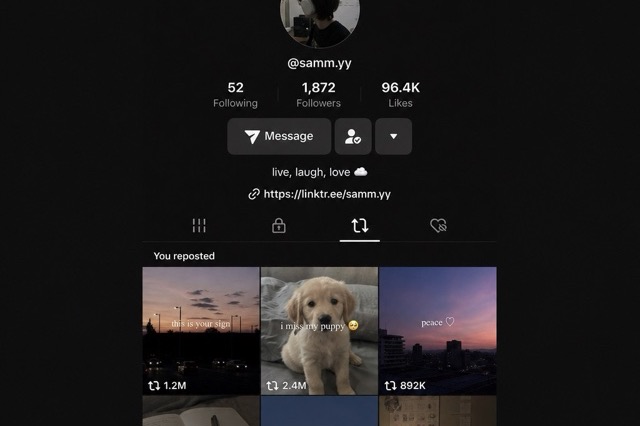
Reposts pile up because they feel low-effort in the moment, and over time they can make a profile feel random or off-brand. Open the app, tap Profile, and find the Reposts tab (the loop-arrow icon). Open the ones you want to reconsider and decide whether each still reflects what you want attached to your account. The tab can look slightly different by region, account type, and app version; if you can't find it, update the app or check from another device.

Step 3: Remove a repost manually
- Open TikTok and go to the reposted video.
- Tap the Share arrow.
- Tap Remove repost.
- Return to your profile and refresh to confirm it's gone.
This undoes your share only; it never deletes the original creator's video. It's the one native action TikTok gives you, and it works one video at a time.
Step 4: Can you remove all reposts at once?
Because one-at-a-time removal is tedious, people look for a bulk remover. TikTok has no native bulk-removal feature and no public API for it, so any tool works by automating that same Remove repost action, not by calling a hidden endpoint. That's fine, but it's exactly why you should check a tool before connecting your account. A safe one:
- Never asks for your TikTok password, session cookies, or two-factor codes.
- Explains clearly what it can and cannot remove.
- Lets you review and scan before anything is removed.
- Gives you a way to pause or stop mid-run.
- Requests narrow permissions (scoped to tiktok.com), not access to everything.
WipeTok is built to pass that checklist: a Chrome extension and an iPhone/iPad app that scans your Reposts tab, removes reposts in visible paced batches with a stop button, and never collects your password (you sign in to TikTok yourself). It only touches reposts, not your uploads or drafts, and it's independent and not affiliated with TikTok. Free to download. Repost removal uses Pro access or available bonus credits; paid upgrades are offered in the app. Free, with no purchase or daily quota enforced by the reviewed extension version.
Step 5: Delete videos you uploaded
Videos you posted yourself are different from reposts: deleting one removes your post, not just a share. Open the video, tap More options, choose Delete, and confirm. TikTok says deleted posts can stay in its system for up to 30 days before permanent deletion and may be recoverable during that window through the Recently deleted area. Only delete when you're comfortable losing the video's comments and performance history; if you're unsure, make it private instead.
Step 6: Make videos private instead of deleting
Sometimes cleanup is about control, not removal. For a post that's personal or off-brand but still meaningful, change its audience instead: open the video, tap More options, then Privacy settings, and choose who can see it. Use Only you for a private archive, or a followers-only option for something fine for close connections but not public discovery.
Step 7: Clear out drafts
Drafts never appear publicly, but they clutter the app and take up storage. Open your drafts and delete anything you'll never post, keeping only clips with a clear purpose. Back up any original footage to your device or cloud first, because draft behavior can change when you switch devices or reinstall the app, so drafts are not a safe backup.
Step 8: Review download, Duet, Stitch, and comment settings
A cleaner presence also means controlling how others reuse your content. In your privacy settings, decide whether people can download your videos, limit comments on older posts that attract spam, and choose whether others can Duet or Stitch your videos. Tightening these reduces the unwanted sharing and replies that create future cleanup work in the first place.
Step 9: Request your data before a big cleanup
Planning to remove a lot at once? Download your TikTok data first. Under Settings and privacy, then Account, choose Download your data and request the file (it can take a few days to prepare). It's optional, but it gives you a record of your activity before a large deletion.
Step 10: Keep a simple monthly routine
The best cleanup strategy is prevention. Once a month, remove reposts that no longer fit, make outdated personal videos private, delete accidental uploads, clear dead drafts, and glance at your profile as a first-time visitor would. If you post for a business or as a creator, add one check: does what remains still match what you want people to understand about you?
Frequently asked questions
Is there a TikTok all reposted videos remover that clears everything at once?
Not through a native TikTok feature or public API. Bulk removers automate the same one-at-a-time Remove repost action. Judge any of them on safety: no password requests, a scan-and-review step, a stop control, and narrow permissions. WipeTok is built to meet that standard and only touches reposts.
Does removing a repost delete the original video?
No. Removing a repost only undoes your share of it. The creator's original video stays on their account, and your uploaded videos are unaffected. Deleting a video you posted yourself is a separate action through the More options menu.
Should I delete old videos or make them private?
If you might want a video later, make it private (Only you) rather than deleting it, since deletion also removes its comments and history. Delete only when you're sure you won't want the post or its engagement back.
Related reading


Clean up your TikTok reposts
WipeTok scans your repost trail and cleans it in visible, controlled batches — no password collection.
See how the Chrome extension works →